
TECH
You Can Get a Better View of the Northern Lights With Your Phone
In addition to being visually stunning, the appeal of the Northern Lights also has...

Modern Macs look and feel great, but sometimes I really miss the look and feel of retro Macs. Skeuomorphism, where digital objects are designed to mimic their real-world counterparts, is dead, but quite often I feel like going back to that era of Mac software. If you're feeling as nostalgic as I am, this guide will walk you through the steps to create the perfect retro look for your Mac.
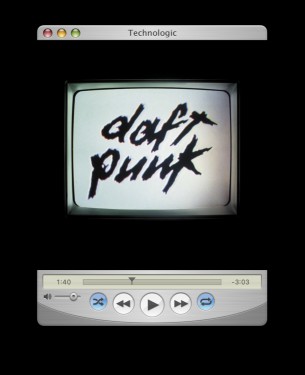
The Mac's Music app is the go-to for anyone who uses Apple Music. To use a retro controller for this app, check out QuickTune, which recreates the look of QuickTime 7 from Mac OS X Tiger and allows you to control playback for Apple Music. Standout design elements include glass buttons for window controls, a brushed metal theme, and dedicated playback control buttons.
The same developer—Mario Guzman—also made Music MiniPlayer for macOS, which looks like iTunes.

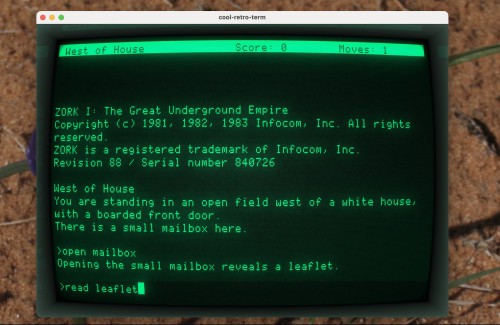
For those who use command line tools, the modern macOS Terminal app can feel a bit too polished. If you feel like going back to the good old days of using the command line on a CRT monitor, consider using Cool Retro Term. My colleague Justin Pot has written a great piece that walks you through the ins and outs of that app.
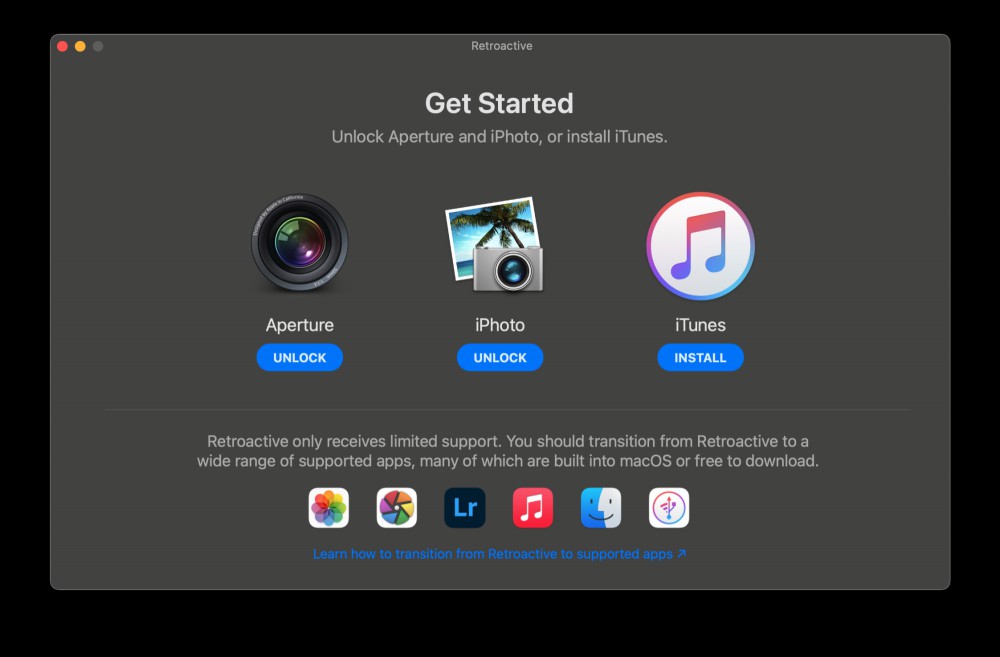
iTunes and iPhoto were era-defining apps for the Mac. Everyone knows about the former, which was the default music player, a digital storefront for buying music, and the app you used to manage your iPhone. iPhoto was less popular, but used to be the photo management app before Photos came around.
No retro Mac setup is complete without iTunes and iPhoto, and we've got a full guide on getting these apps back on your modern Mac. You can use the Retroactive app to install both iPhoto and iTunes.
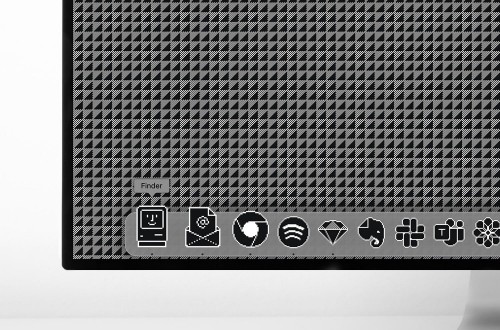
To complete a retro look for your Mac, you're going to need a pack of retro icons. Designer Ben Vessey has you covered here, with 205 old school icons that complete your modern Mac's transformation into a retro computer. This icon pack costs £7.99 (roughly $10) and includes icons for Apple's apps plus lots of third party apps including the Adobe suite, 1Password, Spotify, and more. It also has icons for system folders and commonly used file extensions. This pack includes a complimentary retro wallpaper, too.
You'll also need to buy the IconChamp app ($9) to replace icons on your Mac, and even after that, a couple of system apps including Trash and Calendar cannot be changed due to macOS restrictions.
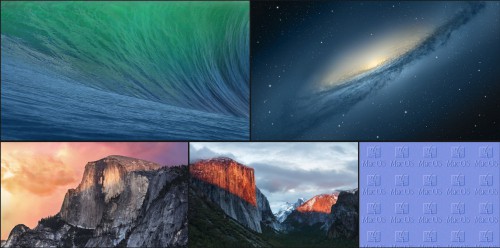
The final step of your retro transformation involves changing your Mac's wallpaper. YouTuber freddiemt has uploaded all of the default wallpapers that shipped with each version of the Mac's operating system to this Google Photos album. You can also quickly search online for retro Mac wallpapers to craft the perfect retro look for your computer.
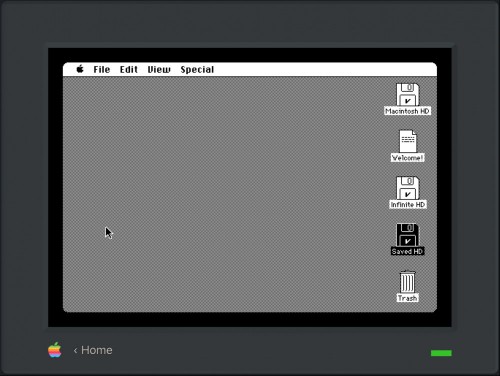
If none of these changes satisfy your nostalgia cravings, you can revisit classic versions of Mac right from your browser. The website Infinite Mac allows you to check out what Apple's operating system looked like before it was even called Mac OS.
Still not satisfied? Check out this retro PC that looks just a classic Macintosh from 1984!
In addition to being visually stunning, the appeal of the Northern Lights also has...

AI is a fascinating field, one that has seen a ton of advancements in recent years...
Most things are faster to do with the keyboard than with the mouse, but not every ...
The release of iOS 17.5 brought with it a somewhat troubling bug, as many users re...

It’s only in the last few years that we’ve seen the entry of truly smart ceili...

Following a recent uptick in what seems to be bots making sexually suggestive post...
Comments on "How To Turn Your Modern Mac Into an Old-School Macintosh" :