ANDROID
Older Galaxy Phones Are Getting Some One UI 6.1 Features, but Not All
Samsung has already confirmed that its older flagship devices will soon be getting...

The Mac's built-in tool for screenshots is pretty cool, but recording your screen has always been a bit of a pain. As of writing, this feature is divided between two apps—the screenshot tool (accessed by pressing Command-Shift-5) and the good old QuickTime Player. For a better and more direct alternative to macOS' built-in screen recording tools, try the free QuickRecorder utility.
QuickRecorder combines the best features of macOS' screen recording with excellent customizability, which makes it a must-have. You can record your Mac's screen, or that of an iPhone connected to your Mac, or even capture audio from any app that's running on your Mac. This includes your web browser, a video conferencing app, or any other app that plays audio.
A screen recording app does what it says—records a video of your screen. This is useful for many reasons. If your Mac is having issues, you can use a screen recording app to record a video and demonstrate the problem to either Apple or your friendly neighborhood repair shop. If your grandparent can't figure out how to do something on their Mac, you can record your screen and send them a video to show how something is done.

With a good screen recording app, you'll be able to choose the quality of the recording so that you can optimize it for either space or looks. A good recording app will also allow you to choose whether to show the mouse cursor, record an app's audio, and allow you to record a voiceover with the screen recording. QuickRecorder does all of these things and it's free, which makes it a compelling alternative to the screen recording tools in macOS.
Since you'll need to download this app off GitHub (click the dmg file to download, then double click the download to install), your Mac may not allow you to use it immediately. You may have to go to System Settings > Privacy & Security and click Open Anyway to run it. This is a security feature, but QuickRecorder is safe to use, so you need not worry. The app may also prompt you to allow it recording permissions, which you can do right from the pop-up.

Once the setup is done, you can launch QuickRecorder. The app will show a nice, large rectangular pane with options that are easy to follow. You can choose one of the following options:
System Audio: Records audio from any app on your Mac.
Screen: Records the whole screen.
Screen Area: Lets you create a rectangle on screen and only records things that are inside the rectangle.
Application: Lets you pick an app and records all visible windows of that app.
Window: Records the selected open window.
Mobile Device: If you've connected a mobile device to your Mac using a USB cable, this lets you record the screen of the mobile device. Normally, you'd do the screen recording directly on the mobile device, but this method saves you the hassle of converting formats and transferring the file to your Mac.
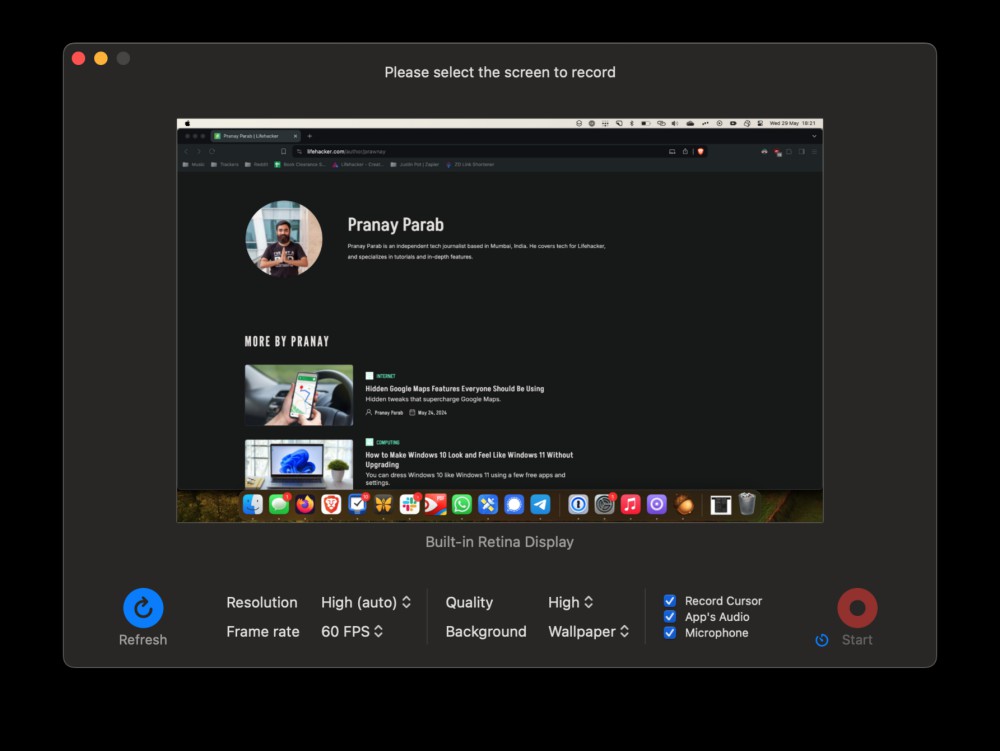
Once you've selected any of the above options, QuickRecorder shows you a record button next to a few additional options for resolution, quality, and frame rate. Hit record to begin recording. When the recording begins, you'll see a purple area in the menu bar. Click the pause icon to take a break from recording or the stop icon to end the recording. Once you're done recording, QuickRecorder saves the file to your Mac's desktop.
QuickRecorder also supports Presenter Overlay, the macOS Sonoma feature that lets you place yourself on camera while recording your screen. On older versions of macOS, the app lets you record yourself along with the screen recording using the webcam.
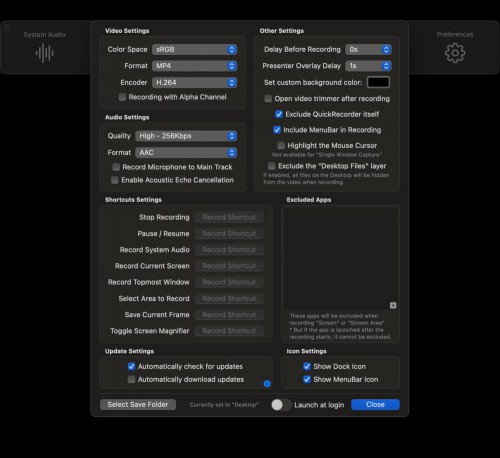
The default settings in QuickRecorder are pretty good, but you can easily configure the app for more utility. When you open the app, click the gear icon to open Preferences. Here you can customize pretty much everything about your screen recording. The most important options are listed below:
Video Settings: Choose between MOV and MP4 as a video format, and pick an encoder (H.264 for greater compatibility and H.265 for smaller file sizes).
Audio Settings: Audio format is AAC by default, but you can choose MP3 for smaller file sizes or ALAC/FLAC for lossless audio. You can also enable noise cancellation to block out background noise.
Shortcuts Settings: Set up keyboard shortcuts to start recording without using your mouse.
Other Settings: Here, you can add a short delay before the recording begins to allow you some time to compose yourself. You can also choose to include or exclude QuickRecorder and the menu bar from the recordings. The app can also highlight the mouse cursor, in case you want to make it extra clear where to click.
Excluded Apps: Lets you select which apps not to record.
Icon Settings: Use these to show or hide the app from your dock or menu bar.
Select Save Folder: Choose where your screen recordings are saved.
With these options configured, you can level up screen recordings on your Mac.
Samsung has already confirmed that its older flagship devices will soon be getting...
For the past six weeks, I’ve been conducting an experiment. At 5 p.m. twice a we...

As part of Google I/O, the company made several AI announcements, including a new ...
All eyes are on Apple's WWDC event next month. That's when the company will no dou...

At I/O 2024, Google announced a great new AI feature for Google Photos, simply cal...

Families are about to find it a lot easier to use Google Password Manager. Origina...
Comments on "QuickRecorder Is a Better Alternative to Your Mac's Screen Recorder" :