
APPLE
Apple Is Finally Making Siri a Real AI Chatbot
Apple is currently behind on the generative AI game, but that could all change soo...

If you've recently updated your Windows 11 PC, you might be surprised to see three new widget boxes at the bottom of your lock screen, where there used to be nothing. You haven't been hacked: These are part of Microsoft's continued efforts to stuff annoying ads and widgets where they do not belong.
To be fair, I actually like the weather widget. But Microsoft is also bundling it with things like stock market news, NBA updates, and other news bulletins right to the lock screen. And the worst part is, you can't customize it. In other words, there's no way to keep the weather widget and ditch the rest. If you're not interested in one of these widgets, too bad. The only thing you can do to clear your lock screen is disable the whole feature altogether.
Microsoft started deploying this new feature in March, with the Windows 11 KB5035942 update and the Windows 10 KB5035941 update. But it wasn't turned on for everyone. Only in May did Microsoft start to gradually enable it for all users.

In typical Microsoft fashion, the new feature isn't labelled clearly, so you'll end up spending a lot of time in Settings just to find the right menu for it.
If you're using Windows 11, Open the Settings app using the Start menu, the Search feature, or the Windows + I keyboard shortcut. Choose Personalization from the left sidebar and go to the Lock screen menu. Here, choose the drop-down next to the Lock screen Status option. By default, it will show Weather and more. This is the lofty description that pools in the weather widget with finance, sports updates, and more.
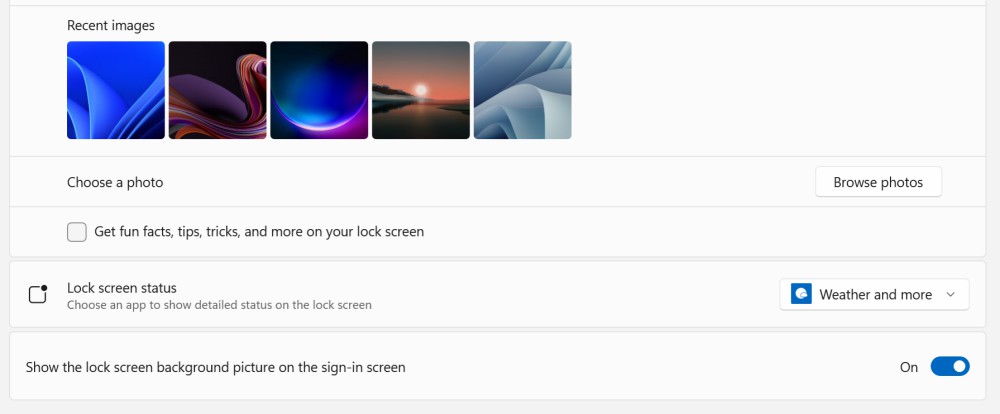
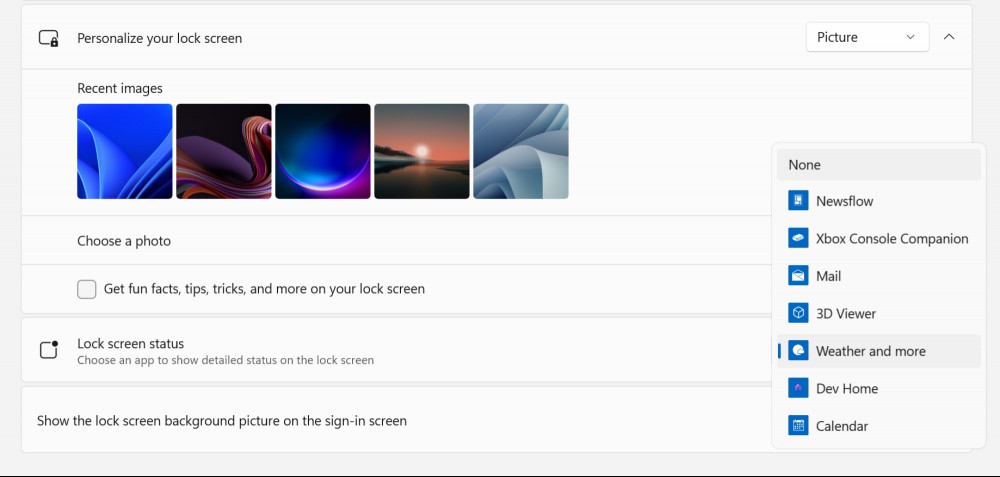
In this menu, switch to the None option.
While you're here, I also recommend you uncheck the Get fun facts, tips, tricks, and more on your lock screen option, for a clean and focused lock screen.
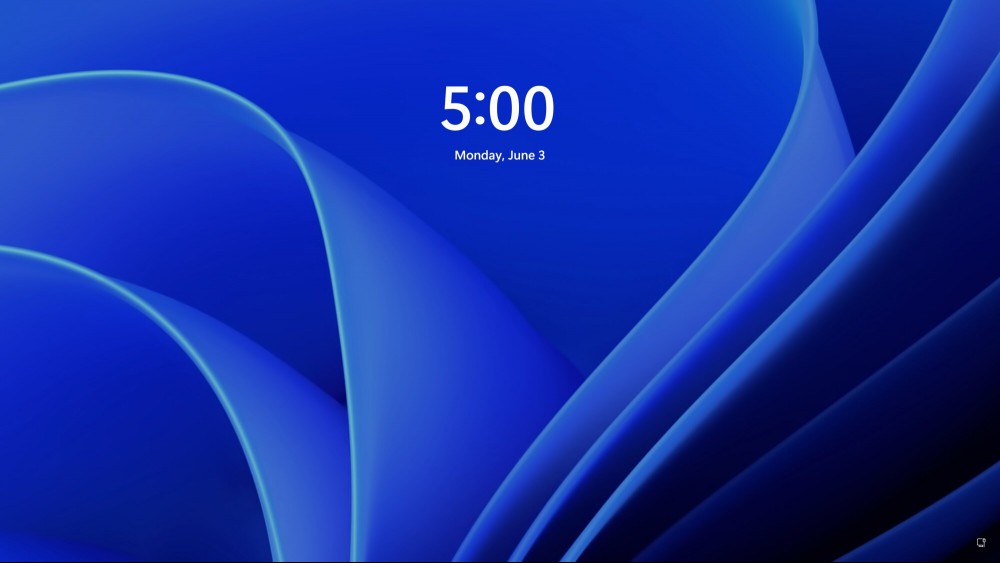
The next time you visit your Windows lock screen, you'll find it free from the new widget boxes.
Just because you're still using Windows 10 doesn't mean you're safe from the new lock screen widgets. Open the Settings app on Windows 10 and go to Personalization. Choose Lock screen from the left sidebar and find the text that says "Choose one app to show detailed status on the lock screen." This will show the Weather icon below it. Click on the icon (you'll see text that says Weather and more), and switch to the None option.
Apple is currently behind on the generative AI game, but that could all change soo...

Microsoft is updating the Windows 11 Snipping Tool, which is the platform's defaul...
The File Explorer in Windows 11 has been having a rough time. The initial redesign...
Editorial music curation is one of Apple Music's strong suits, as evidenced by the...

Amazon Prime Day is quickly approaching, with the two-day sale likely sometime in ...

Days before Apple’s WWDC event, Microsoft’s own AI laptop initiative just got ...
Comments on "How to Remove the New Lock Screen Widgets in Windows 11" :