
SOFTWARE
How You Can (Almost) Bring 'Circle to Search' to the iPhone
One of the more interesting and useful AI features recently introduced to Google a...

Like almost every other major operating system currently available, Windows 11 offers users light and dark mode interface options. Light mode is turned on by default, but dark mode can be easier on the eyes, especially in dimly lit rooms or at night. In some cases, it even reduces how much power your device’s display uses. Here's how to turn it on in Windows 11.
To turn on Dark mode in Windows 11:
Open Settings from the Start menu or with the Win+i shortcut on your keyboard.
Select Personalization from the list on the left-hand side.
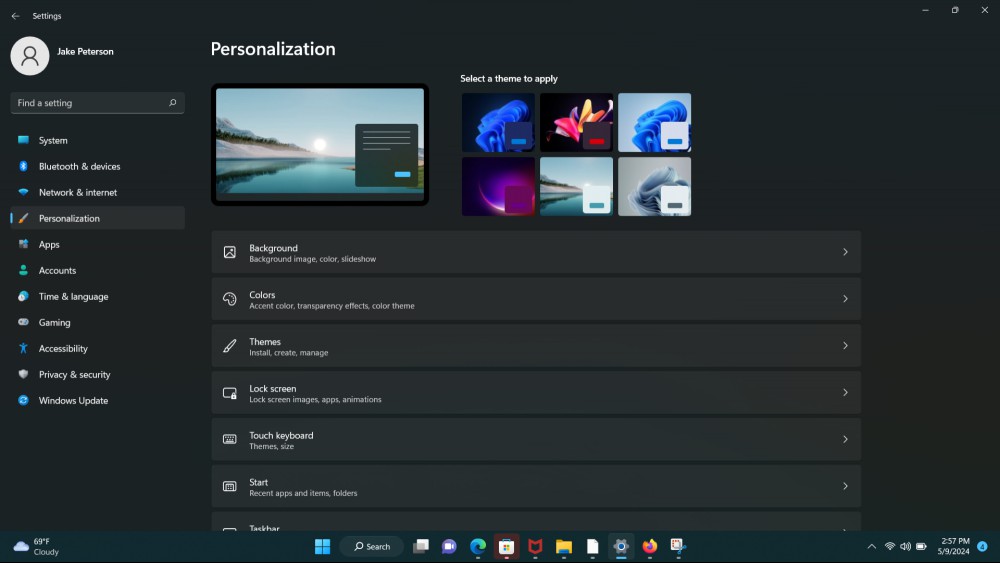
Select Colors in the Personalization menu.
Click Choose Your Mode and select Dark from the drop-down list.
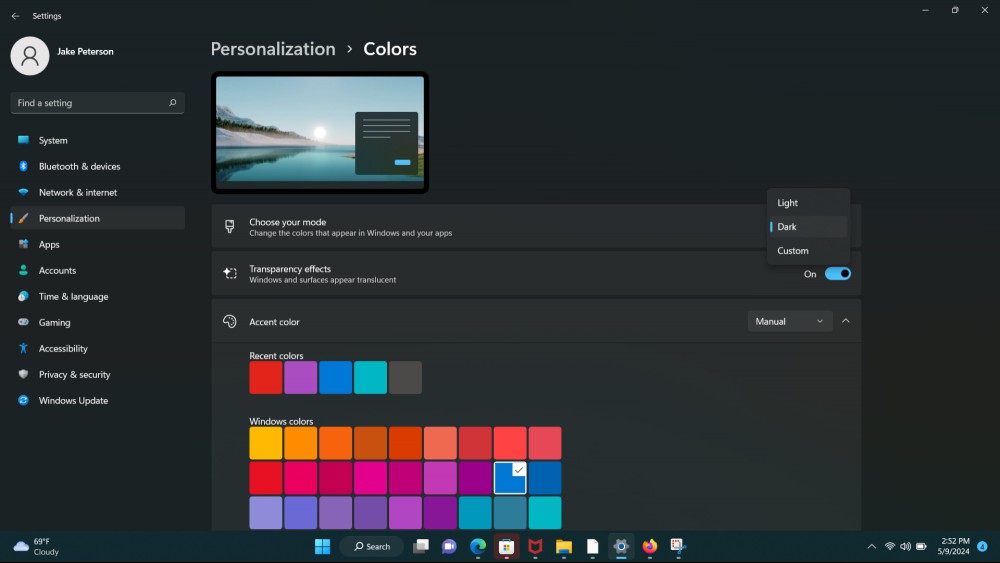
While easy, this only applies Windows 11's standard Dark mode settings. You can actually customize things a little bit more.

Like Windows 10, Windows 11 lets you apply unique themes that change everything about the interface in one swoop—the wallpaper, menu and folder colors, accent colors, icons, and more. Here's how to get to them:
Go to Settings > System > Personalization using the same method above.
Click on Themes in the menu list.
Select the theme you want from the Current Theme drop-down menu. The “Windows (Dark)” theme is probably the safest bet, but several others also offer dark mode-like color schemes.
If you don’t like any of the pre-included options, click Browse Themes to view and download additional themes from the Microsoft Store.
Once you have selected your new theme, click Apply to enable it.
If you aren’t a fan of the base Dark Mode settings, or just don’t want to use Dark Mode across all your windows and apps, you can customize your theme's colors.
Open Settings and select Personalization from the list on the left-hand side.
Select Colors in the Personalization window.
Click Choose Your Mode and select Custom from the drop-down list.
Select Dark or Light for the theme that Windows and Menus will use. This will allow apps to use whatever mode you have set up for them, without Windows trying to take over.
You can also select an Accent Color by changing it to Manual.
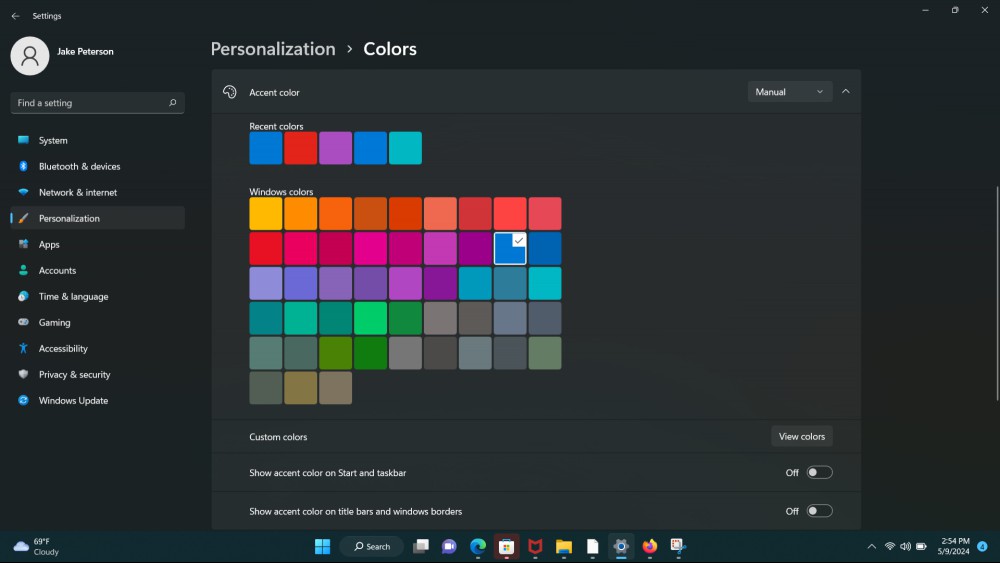
Click View Colors and use the color picker to find the color you like best.
Use the toggle options to select which borders you want to apply the accent to.
Windows 11’s personalization settings also include “Contrast themes,” which are designed for users with specific vision-based accessibility requirements. As the name implies, Contrast themes use contrasting color combinations that make it easier to read text against the background (either light text and dark backgrounds for menus, or dark text and light backgrounds). Many of them will also work as dark themes.
You can toggle contrast themes on or off at any time by pressing the left Alt + left Shift + Print Screen keys, but turning them on in the Windows settings menu will allow you to edit them.
There are two ways to find the Contrast themes menu:
The first method can be found by navigating to Settings > System > Personalization > Themes > Contrast themes.
Alternately, just navigate to Settings > Accessibility > Contrast themes.
Once in the Contrast themes menu, select the color scheme that you like best from the drop-down menu. Click “Edit” to customize your contrast theme.
One of the more interesting and useful AI features recently introduced to Google a...

For the past six weeks, I’ve been conducting an experiment. At 5 p.m. twice a we...

The big tech story last week was GPT-4o, the newest model from OpenAI. GPT-4o is m...

The Mac's built-in tool for screenshots is pretty cool, but recording your screen ...

The PlayStation VR2 launched in 2023, bringing Sony’s next-gen VR experience to ...
It doesn't matter whether you're test driving Linux or installing Windows—making...
Comments on "How to Enable and Customize Dark Mode in Windows 11" :